# User Interface
This page lists all user interface additions, changes, fixes that are implemented in Vinifera.
## Sidebar
Vinifera replaces the vanilla Tiberian Sun sidebar with a new system designed for flexibility and modding.
```{note}
You don't need to follow these instructions if you change the TS Client's update channel to `Vinifera Beta` (under the `Updater` tab of the `Options` menu) and then update to the latest version after the client has restarted. The TS Client will then enable the tabs for you. Do keep in mind that updating will cause the TS Client to undo any modifications that you might have already made.
```
The sidebar supports two layouts, switchable via a single INI key:
- **Classic** — the vanilla-style 2-column layout, with independent left and right strips.
- **Tabbed** — a 4-tab layout similar to Red Alert 2 (Structure, Infantry, Unit, Special). Since there is no defense queue, the "Defenses" tab is replaced by "Special", which contains Superweapons, aircraft and naval units.
Players can override the mod default in `SUN.INI`:
```ini
[Options]
SidebarViewType=Classic ; string, Classic or Tabbed. Overrides UI.INI's [Sidebar]->ViewType when set.
```
### Layout Configuration
Nearly every aspect of the sidebar — positions, sizes, shapes, visibility — can be customized in `UI.INI` without changing the radar, credits area, or sidebar width.
- All positions are relative to the internal sidebar area (under the radar).
- `[Sidebar]` selects which layout to use. `[SidebarClassic]` and `[SidebarTabbed]` are self-contained configs for their respective layouts.
- Leaving scroll button position entries blank auto-places them from the strip layout.
- After loading side-specific mixes, the game also reads `UIOVERRIDES.INI` if present. This file uses the same keys as `UI.INI` and layers on top of the already loaded base config, allowing side-specific UI overrides.
Sample graphics for the new sidebar are available [here](https://github.com/Vinifera-Developers/Vinifera-Files/tree/master/files).
In `UI.INI`:
```ini
[Sidebar]
ViewType=Classic ; string, Classic or Tabbed.
[SidebarClassic]
LeftStripPos=24,26 ; point, left strip origin.
RightStripPos=91,26 ; point, right strip origin.
RowSpacing=0 ; integer, vertical gap between cameo rows (added to CameoSize height to get the row pitch).
CameoSize=64,51 ; point, cameo width,height.
CameoNameOffset=41 ; integer, Y offset for the cameo name.
CameoTextOffset=30,2 ; point, READY/HOLD text offset.
QueueCountOffset=60,2 ; point, queue count text offset.
LeftUpButtonPos= ; point, optional explicit left up button position.
LeftUpButtonVisible=yes ; boolean, show the left up button.
LeftDownButtonPos= ; point, optional explicit left down button position.
LeftDownButtonVisible=yes ; boolean, show the left down button.
RightUpButtonPos= ; point, optional explicit right up button position.
RightUpButtonVisible=yes ; boolean, show the right up button.
RightDownButtonPos= ; point, optional explicit right down button position.
RightDownButtonVisible=yes ; boolean, show the right down button.
RepairButtonPos=31,-9 ; point, repair button position.
RepairButtonVisible=yes ; boolean, show the repair button.
RepairButtonShape=REPAIR.SHP
SellButtonPos=58,-9 ; point, sell button position.
SellButtonVisible=yes ; boolean, show the sell button.
SellButtonShape=SELL.SHP
PowerButtonPos=85,-9 ; point, power button position.
PowerButtonVisible=yes ; boolean, show the power button.
PowerButtonShape=POWER.SHP
WaypointButtonPos=112,-9 ; point, waypoint button position.
WaypointButtonVisible=yes ; boolean, show the waypoint button.
WaypointButtonShape=WAYP.SHP
PowerBarPos=8,25 ; point, power bar position.
PowerBarWidth=12 ; integer, power bar draw/tooltip width.
PowerPipHeight=4 ; integer, vertical spacing between power pips.
PowerBarHeightAdjust=1 ; integer, vertical offset applied to the power bar height calculation.
PowerPipShape=POWERP.SHP
SidebarShape=SIDE1.SHP
SidebarMiddleShape=SIDE2.SHP
SidebarBottomShape=SIDE3.SHP
SidebarAddonShape=ADDON.SHP
ClockShape=GCLOCK2.SHP
RechargeClockShape=RCLOCK2.SHP
DarkenShape=DARKEN.SHP
ScrollUpButtonShape=R-UP.SHP
ScrollDownButtonShape=R-DN.SHP
[SidebarTabbed]
Tab1Pos=20,24 ; point, Structure tab position.
Tab2Pos=55,24 ; point, Infantry tab position.
Tab3Pos=90,24 ; point, Unit tab position.
Tab4Pos=125,24 ; point, Special tab position.
StripPos=24,54 ; point, 2-column strip origin.
RowSpacing=0 ; integer, vertical gap between cameo rows (added to CameoSize height to get the row pitch).
ColumnSpacing=2 ; integer, horizontal gap between the two strip columns (added to CameoSize width to get the column pitch).
CameoSize=64,51 ; point, cameo width,height.
CameoNameOffset=41 ; integer, Y offset for the cameo name.
CameoTextOffset=30,2 ; point, READY/HOLD text offset.
QueueCountOffset=60,2 ; point, queue count text offset.
UpButtonPos= ; point, optional explicit up button position.
UpButtonVisible=yes ; boolean, show the up button.
DownButtonPos= ; point, optional explicit down button position.
DownButtonVisible=yes ; boolean, show the down button.
RepairButtonPos=31,-9 ; point, repair button position.
RepairButtonVisible=yes ; boolean, show the repair button.
RepairButtonShape=REPAIR.SHP
SellButtonPos=58,-9 ; point, sell button position.
SellButtonVisible=yes ; boolean, show the sell button.
SellButtonShape=SELL.SHP
PowerButtonPos=85,-9 ; point, power button position.
PowerButtonVisible=yes ; boolean, show the power button.
PowerButtonShape=POWER.SHP
WaypointButtonPos=112,-9 ; point, waypoint button position.
WaypointButtonVisible=yes ; boolean, show the waypoint button.
WaypointButtonShape=WAYP.SHP
PowerBarPos=8,53 ; point, power bar position.
PowerBarWidth=12 ; integer, power bar draw/tooltip width.
PowerPipHeight=4 ; integer, vertical spacing between power pips.
PowerBarHeightAdjust=0 ; integer, vertical offset applied to the power bar height calculation.
PowerPipShape=POWERP.SHP
SidebarShape=SIDE1.SHP
SidebarMiddleShape=SIDE2.SHP
SidebarBottomShape=SIDE3.SHP
SidebarAddonShape=ADDON.SHP
ClockShape=GCLOCK2.SHP
RechargeClockShape=RCLOCK2.SHP
DarkenShape=DARKEN.SHP
ScrollUpButtonShape=R-UP.SHP
ScrollDownButtonShape=R-DN.SHP
StructureTabShape=TAB-BLD.SHP
InfantryTabShape=TAB-INF.SHP
UnitTabShape=TAB-UNT.SHP
SpecialTabShape=TAB-SPC.SHP
```
### Cameo Sorting
- Vinifera introduces automatic sorting for cameos that appear on the sidebar.
- Cameos are sorted by side (player's side items appear first, followed by others in side order) and then by type.
- Walls are always sorted after regular buildings, gates after walls, and base defenses after gates. This organization is designed to help players locate base defenses on the sidebar in the absence of a dedicated Defense tab.
- When other factors are equal, cameos are sorted by their index in their respective list.
In `RULES.INI`:
```ini
[SOMEBUILDING] ; BuildingType
SortCameoAsBaseDefense=no ; boolean, is this building considered a base defense for the purposes of sorting.
```
- This sorting feature can be turned off in `SUN.INI`.
In `SUN.INI`:
```ini
[Options]
SortDefensesAsLast=yes ; boolean, are base defenses sorted to the end of the sidebar by default.
```
### Descriptions
- Tooltips displayed when hovering over icons on the sidebar have been expanded.
- By default, hovering over an icon will display the object's name and price. Additionally, a description can be specified, which will appear after the price for TechnoTypes and after the name for SuperWeaponTypes.
In `RULES.INI`:
```ini
[SOMETECHNO] ; TechnoType
Description=Basic infantry.@@Cheap and effective against infantry and light vehicles, but very short-ranged.
```
You can use `@` to force a linebreak, just like with most text in the game.
```{note}
Due to limitations of the game's tooltip system, the length of the description is limited to 200 characters.
```
### Queues
- Vinifera allows the players to batch queue/dequeue units.
- You can hold `SHIFT` while queueing to queue 5 units at a time.
- You can hold `CONTROL` while dequeueing to dequeue 5 units at a time, or `SHIFT` to dequeue all units of that type.
```{warning}
Due to implementation details, it is recommended that you do not make the queue longer than 50 units. Dequeueing more than 63 units at a time could potentially result in other actions being done by the player on the same frame being ignored by the game.
```
## Beacons
Vinifera implements multiplayer beacons, similar to those seen in Red Alert 2.
In `RULES.INI`:
```ini
[General]
BeaconsEnabled=no ; boolean, are beacons enabled?
SPBeacons=no ; boolean, can the player place beacons in single-player?
MaxBeacons=-1 ; integer, maximum beacons per player. When the cap is reached, the oldest beacon will be deleted when a new beacon is placed. Negative numbers mean there is no cap.
```
- When a beacon is placed/detected, a sound effect and an EVA line are played.
```ini
[AudioVisual]
PlaceBeaconSound= ; VocType, the sound played when the player places a beacon.
PlaceBeaconVoice= ; VoxType, the EVA line played when the player places a beacon.
DetectBeaconVoice= ; VoxType, the EVA line played another player places a beacon.
```
- Beacons can have a text label.
- Additionally, beacons may be placed with a preset label by holding `CTRL`, `SHIFT`, `ALT`, or a combination of them. The text that is shows as the preview, and the text that is set on the placed beacon can be configured.
In `UI.INI`:
```ini
[Ingame]
BeaconTextOffset=32 ; integer, the Y offset for the beacon text.
BeaconPreviewTextOffset=20 ; integer, the Y offset for the beacon text during preview.
BeaconText1=Expand ; string, shown when placing with Shift.
BeaconText2=Attack ; string, shown when placing with Ctrl.
BeaconText3=Move ; string, shown when placing with Alt.
BeaconText4= ; string, shown when placing with Ctrl+Shift.
BeaconText5= ; string, shown when placing with Alt+Shift.
BeaconText6=Defend ; string, shown when placing with Ctrl+Alt.
BeaconText7= ; string, shown when placing with Ctrl+Alt+Shift.
BeaconPreviewText1=Expand ; string, preview shown with Shift.
BeaconPreviewText2=Attack ; string, preview shown with Ctrl.
BeaconPreviewText3=Move ; string, preview shown with Alt.
BeaconPreviewText4= ; string, preview shown with Ctrl+Shift.
BeaconPreviewText5= ; string, preview shown with Alt+Shift.
BeaconPreviewText6=Defend ; string, preview shown with Ctrl+Alt.
BeaconPreviewText7= ; string, preview shown with Ctrl+Alt+Shift.
```
- When drawn on the map, beacons use `PBEACON.SHP`. The animation is drawn using the unit palette, and is remapped to the beacon owner's house color. The second half of the animation is played when the beacon is selected.
- When drawn on the radar, beacons use `RDRBEACN.SHP`.
- Beacon animations are not tied to game FPS and instead play at a set framerate.
In `UI.INI`:
```ini
[Ingame]
BeaconAnimFramesPerSecond=25 ; integer, the framerate at which the beacon anim is played.
RadarBeaconAnimFramesPerSecond=25 ; integer, the framerate at which the radar beacon anim is played.
```
- Beacon placement/selection uses new mouse actions. For their defaults, please refer to [Actions](New-Features-and-Enhancements.md/#actions).
## Hotkey Commands
Vinifera modifies the vanilla "Deploy" keyboard command to work with air transports and carryalls.
### `[ ]` Place Building
- Enters the manual placement mode when a building is complete and pending on the sidebar.
### `[ ]` Veterancy Filter
- Cycles through green/veteran/elite units among the initially selected group.
### `[ ]` Health Level Filter
- Cycles through red/yellow/green HP units among the initially selected group.
### `[ ]` Toggle Special Timers
- Toggles the visibility of Super Weapon timers.
### `[ ]` Toggle Scenario Overlay
- Opens/closes the in-game scenario debug window (developer mode only). Browses loaded type heaps (TriggerTypes, TagTypes, TeamTypes, TaskForces, ScriptTypes, AITriggerTypes, HouseTypes), live scenario instances (Triggers, Tags, Teams, Scripts, Houses), named global/local variables, and per-house AI base nodes.
### `[ ]` Toggle Game Info
- Opens/closes the in-game Game Info overlay window. The window has the following tabs:
- **Stats** — mission time, FPS, frame number, and (developer mode only) live heap counts and the multiplayer event queue depths (`OutList` / `DoList`).
- **House** *(developer mode only)* — credits, power, current production, biases, losses and state flags of the owner of the currently selected object (or the local player when nothing is selected).
- **Unit** — identity (friendly name and INI id), owner (house type plus a control tag: `You`, the other player's nickname in multiplayer, or `Ally`/`Enemy`/`Computer`), HP, armor type, rank with current/next XP and the raw experience value, speed, and per-weapon stats (Attack/Burst/ROF, DPS raw and with house firepower bias, warhead, and a collapsible verses-vs-armor table) of the selected unit.
- **Network** *(multiplayer only)* — sync block (Frame, FPS, MaxAhead, Resp Time, Lat Fudge, Retry delta/timeout, local process time) and a per-peer table with name, avg/max rtt, resends, lost packets, percent loss, missed packets, queue depth and process time.
### `[ ]` Repeat Last Building
- Queue the last structure that was built.
### `[ ]` Repeat Last Infantry
- Queue the last infantry that was built.
### `[ ]` Repeat Last Unit
- Queue the last vehicle that was built.
### `[ ]` Repeat Last Aircraft
- Queue the last aircraft that was built.
### `[ ]` Select Building Tab
- Switch the command bar to the Building Tab and select the completed building if any.
### `[ ]` Select Infantry Tab
- Switch the command bar to the Infantry Tab.
### `[ ]` Select Vehicles Tab
- Switch the command bar to the Vehicle Tab.
### `[ ]` Select Specials Tab
- Switch the command bar to the Special Tab.
### `[ ]` Jump Camera West
- Jump the tactical map camera to the west edge of the map.
### `[ ]` Jump Camera East
- Jump the tactical map camera to the east edge of the map.
### `[ ]` Jump Camera North
- Jump the tactical map camera to the north edge of the map.
### `[ ]` Jump Camera South
- Jump the tactical map camera to the north edge of the map.
### `[ ]` Scroll North-East
- Scroll the camera North-East.
### `[ ]` Scroll South-East
- Scroll the camera South-East.
### `[ ]` Scroll South-West
- Scroll the camera South-West.
### `[ ]` Scroll North-West
- Scroll the camera North-West.
### `[ ]` Previous Track
- Plays the previous music track.
### `[ ]` Next Track
- Plays the next music track.
### `[ ]` Place Beacon
- Enters beacon placement mode.

### Customizable Vanilla Modifier Keys
- Vinifera allows the player to customize the keys used for Force Move, Force Attack, Select and Queued Move.
```{note}
Due to engine limitations, these keys will not appear in the options menu and must be customized in `KEYBOARD.INI`.
```
In `KEYBOARD.INI`:
```ini
[Hotkey]
ForceMove=18 ; key number, ALT
ForceAttack=17 ; key number, CONTROL
Select=16 ; key number, SHIFT
QueueMove=81 ; key number, Q if the new sidebar is off, otherwise Z
```
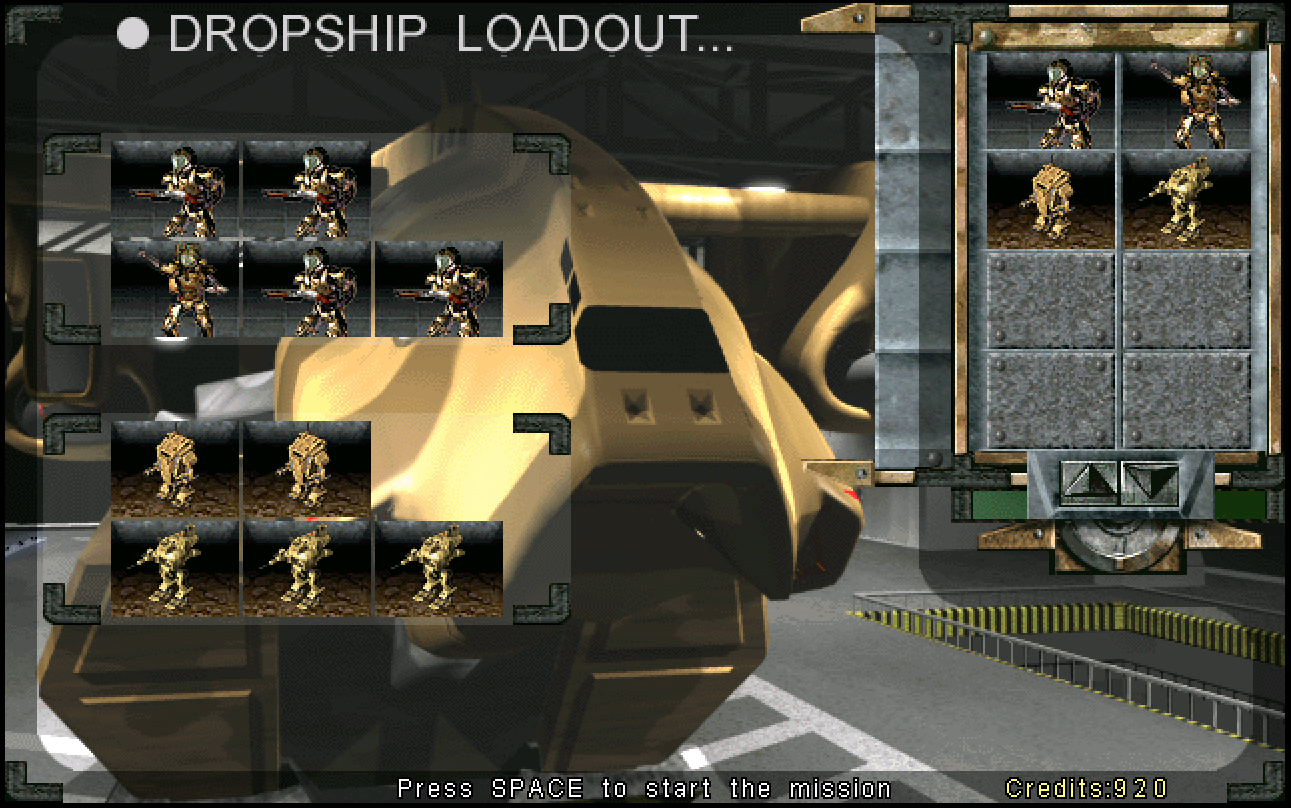
## Dropship Loadout
- The Tiberian Sun Map theme is now played on the Dropship Loadout screen (`DSHPLOAD` can be defined in `THEME.INI` to customise this.)
- Help text is now shown on the screen to aid the user.
## Loading screen
- PNG images can be used as an alternative to PCX images. This new system scans for the requested filename with the .PNG extension and use that if found, otherwise it will fall back to scanning and load the .PCX file.
```{note}
This system only supports 8-bit PNG. All other formats such as Greyscale, Paletted, Alpha and 16-bit are not supported.
```
Attached is a set of the original loading screens with a minor edit and saved as PNG for testing;
[PNG_Loading_Screens.zip](https://github.com/Vinifera-Developers/Vinifera/files/7392707/PNG_Loading_Screens.zip)
## Tactical UI
### Super Weapon Timers
- Super Weapon timers, similar to those found in Red Alert 2, can now be displayed on the tactical view. This is disabled by default and each relevant SuperWeaponType must have it enabled. Superweapons that are offline due to low power or are disabled via other purposes will not show.
In `RULES.INI`:
```ini
[SOMESUPERWEAPON] ; SuperWeaponType
ShowTimer=no ; boolean, when this superweapon is active, does its recharge timer display on the tactical view?
```
### Chat Improvements
- Vinifera adds a background behind the user typed messages that appear in-game to provide better readability.
- Additionally, Vinifera implements the system to echo the user's sent messages back to them in-game as a confirmation they were sent. This is an enhancement from Red Alert 2.

- Vinifera allows players to send a message to only their allies. Additionally, all messages now display their recipient ("to all", "to team" or "to PlayerName").
In `KEYBOARD.INI`:
```ini
[Hotkey]
ChatToAll=13 ; key number, RETURN
ChatToAll2=119 ; key number, F8
ChatToAllies=8 ; key number, BACKSPACE
```
In `UI.INI`:
```ini
[Ingame]
TextLabelOutline=yes ; boolean, should the text be drawn with a black outline?
TextLabelBackgroundTransparency=50 ; unsigned integer, the transparency of the text background fill. Ranged between 0 and 100.
```
### Unit Promotion Indicators
- In Red Alert 2, unit promotion is indicated by sounds, flashing and an EVA voiceline. Vinifera ports this behavior to Tiberian Sun.
In `RULES.INI`:
```ini
[AudioVisual]
UpgradeVeteranSound= ; VocType, the sound played when a unit is promoited to veteran status.
UpgradeEliteSound= ; VocType, the sound played when a unit is promoted to elite status.
VoxUnitPromoted= ; VoxType, the EVA line played when a unit is promoted.
EliteFlashTimer=0 ; integer, the number of frames that a newly elite unit will flash for.
```
### Unit Health Bar
- Vinifera allows customizing the position of the heath bar.
In `UI.INI`:
```ini
[Ingame]
UnitHealthBarPos=-25,-16 ; Point2D, the draw position of the unit health bar.
InfantryHealthBarPos=-24,-5 ; Point2D, the draw position of the infantry health bar.
```
### Unit Pips
- The location of the control group number and veterancy pips can now be customized.
In `UI.INI`:
```ini
[Ingame]
UnitGroupNumberOffset=-4,-4 ; Point2D, the group number offset for units.
InfantryGroupNumberOffset=-4,-4 ; Point2D, the group number offset for infantry.
BuildingGroupNumberOffset=-4,-4 ; Point2D, the group number offset for buildings.
AircraftGroupNumberOffset=-4,-4 ; Point2D, the group number offset for aircraft.
UnitWithPipGroupNumberOffset=-4,-8 ; Point2D, the group number offset for units with pips.
InfantryWithPipGroupNumberOffset=-4,-8 ; Point2D, the group number offset for infantry with pips.
BuildingWithPipGroupNumberOffset=-4,-8 ; Point2D, the group number offset for buildings with pips.
AircraftWithPipGroupNumberOffset=-4,-8 ; Point2D, the group number offset for aircraft with pips.
UnitVeterancyPipOffset=10,6 ; Point2D, the veterancy pip offset for units.
InfantryVeterancyPipOffset=5,2 ; Point2D, the veterancy pip offset for infantry.
BuildingVeterancyPipOffset=10,6 ; Point2D, the veterancy pip offset for buildings.
AircraftVeterancyPipOffset=10,6 ; Point2D, the veterancy pip offset for aircraft.
UnitSpecialPipOffset=0,-8 ; Point2D, the special pip offset for units.
InfantrySpecialPipOffset=0,-8 ; Point2D, the special pip offset for infantry.
BuildingSpecialPipOffset=0,-8 ; Point2D, the special pip offset for buildings.
AircraftSpecialPipOffset=0,-8 ; Point2D, the special pip offset for aircraft.
```
- TS Patches changes some of the default values. Below are the values that match them:
In `UI.INI`:
```ini
[Ingame]
UnitGroupNumberOffset=-8,-33
InfantryGroupNumberOffset=-8,-33
BuildingGroupNumberOffset=-8,-33
AircraftGroupNumberOffset=-8,-33
UnitWithPipGroupNumberOffset=-8,-33
InfantryWithPipGroupNumberOffset=-8,-33
BuildingWithPipGroupNumberOffset=-8,-33
AircraftWithPipGroupNumberOffset=-8,-33
```
- You can also customize how many pips can be drawn per PipScale.
In `RULES.INI`:
```ini
[AudioVisual]
MaxPips=5,5,5,10,8 ; list of integers - Ammo, Tiberium, Passengers, Power, Charge.
```
### Selection Band Box
- Vinifera allows customizing some properties of the band box used for unit drag-selection.
In `UI.INI`:
```ini
[Ingame]
BandBoxDropShadow=no ; boolean, should the tactical rubber band box be drawn with a drop shadow?
BandBoxThick=no ; boolean, should the tactical rubber band box be drawn with a thick border?
BandBoxColor=255,255,255 ; RGB color, color draw the tactical rubber band box with.
BandBoxDropShadowColor=0,0,0 ; RGB color, color to draw the tactical rubber band box's shadow with.
BandBoxTintTransparency=0 ; integer, transparency of the tactical rubber band.
BandBoxTintColors=(0,0,0),(255,255,255) ; two RGB colors, "dark" and "light" tint colors, interpolated based on the map's ambient light level.
```
- Vinifera allows customizing some properties of the movement, target and target laser lines.
In `UI.INI`:
```ini
[Ingame]
AlwaysShowActionLines=no ; boolean, should action lines remain visible continuously, instead of disappearing after some time?
MovementLineDashed=no ; boolean, should movement lines be drawn with dashes?
MovementLineDropShadow=no ; boolean, should movement lines be drawn with a drop shadow?
MovementLineThick=no ; boolean, should movement lines be drawn with a thick line?
MovementLineColor=0,170,0 ; RGB color, color to draw movement lines with.
MovementLineDropShadowColor=0,0,0 ; RGB color, color to draw movement lines' drop shadow with.
TargetLineDashed=no ; boolean, should target lines be drawn with dashes?
TargetLineDropShadow=no ; boolean, should target lines be drawn with a drop shadow?
TargetLineThick=no ; boolean, should target lines be drawn with a thick line?
TargetLineColor=173,0,0 ; RGB color, color to draw movement lines with.
TargetLineDropShadowColor=0,0,0 ; RGB color, color to draw target lines' drop shadow with.
TargetLaserDashed=yes ; boolean, should target lasers be drawn with dashes?
TargetLaserDropShadow=no ; boolean, should target lasers be drawn with a drop shadow?
TargetLaserThick=no ; boolean, should target lasers be drawn with a thick line?
TargetLaserColor=173,0,0 ; RGB color, color to draw the target lasers with.
TargetLaserDropShadowColor=0,0,0 ; RGB color, color to draw target lasers' drop shadow with.
TargetLaserTime=15 ; integer, time in frames the target laser should be drawn for when the unit fires.
```

 - Additionally, you can also enable lines to be drawn indicating the unit's current navigation queue.
In `UI.INI`:
```ini
[Ingame]
ShowNavComQueueLines=yes ; boolean, should NavCom queue lines be displayed?
NavComQueueLineDashed=no ; boolean, should NavCom queue lines be drawn with dashes?
NavComQueueLineDropShadow=no ; boolean, should NavCom queue lines be drawn with a drop shadow?
NavComQueueLineThick=no ; boolean, should NavCom queue lines be drawn with a thick line?
NavComQueueLineColor=74,77,255 ; RGB color, color to draw the NavCom queue lines with.
NavComQueueLineDropShadowColor=0,0,0 ; RGB color, color to draw the NavCom queue lines' drop shadow with.
```

## Miscellaneous
- Vinifera adds support for 8-bit (paletted and non-paletted) PCX and 8-bit PNG cameos. This system auto-detects and prioritises the PNG or PCX file if found, no additional settings are required.
- Vinifera thickens the waypoint and rally point lines and adds stroke/outline to the waypoint number.
- Vinifera adds a "Load Game" button to the retry dialog shown after a failed mission.
- Vinifera changes the game to save screenshots as a PNG file instead of PCX file. In addition to this, it also changes the filename format to be unique. Instead of writing `SCRN[0000-9999].PNG`, the game now writes `SCRN_[date-time].PNG` (example, `SCRN_02-06-2021_12-51-40.PNG`).
- Additionally, you can also enable lines to be drawn indicating the unit's current navigation queue.
In `UI.INI`:
```ini
[Ingame]
ShowNavComQueueLines=yes ; boolean, should NavCom queue lines be displayed?
NavComQueueLineDashed=no ; boolean, should NavCom queue lines be drawn with dashes?
NavComQueueLineDropShadow=no ; boolean, should NavCom queue lines be drawn with a drop shadow?
NavComQueueLineThick=no ; boolean, should NavCom queue lines be drawn with a thick line?
NavComQueueLineColor=74,77,255 ; RGB color, color to draw the NavCom queue lines with.
NavComQueueLineDropShadowColor=0,0,0 ; RGB color, color to draw the NavCom queue lines' drop shadow with.
```

## Miscellaneous
- Vinifera adds support for 8-bit (paletted and non-paletted) PCX and 8-bit PNG cameos. This system auto-detects and prioritises the PNG or PCX file if found, no additional settings are required.
- Vinifera thickens the waypoint and rally point lines and adds stroke/outline to the waypoint number.
- Vinifera adds a "Load Game" button to the retry dialog shown after a failed mission.
- Vinifera changes the game to save screenshots as a PNG file instead of PCX file. In addition to this, it also changes the filename format to be unique. Instead of writing `SCRN[0000-9999].PNG`, the game now writes `SCRN_[date-time].PNG` (example, `SCRN_02-06-2021_12-51-40.PNG`).