User Interface
This page lists all user interface additions, changes, fixes that are implemented in Vinifera.
Hotkey Commands
[ ] Place Building
Enters the manual placement mode when a building is complete and pending on the sidebar. Defaults to
Z.
[ ] Toggle Special Timers
Toggles the visibility of Super Weapon timers. Defaults to
<none>.
[ ] Repeat Last Building
Queue the last structure that was built. Defaults to
Ctrl+Qif the new sidebar is enabled, otherwise toCtrl+Z.
[ ] Repeat Last Infantry
Queue the last infantry that was built. Defaults to
<none>.
[ ] Repeat Last Unit
Queue the last vehicle that was built. Defaults to
<none>.
[ ] Repeat Last Aircraft
Queue the last aircraft that was built. Defaults to
<none>.
[ ] Select Building Tab
Switch the command bar to the Building Tab and select the completed building if any. Defaults to
Qif the new sidebar is enabled, otherwise to<none>.
[ ] Select Infantry Tab
Switch the command bar to the Infantry Tab. Defaults to
Wif the new sidebar is enabled, otherwise to<none>.
[ ] Select Vehicles Tab
Switch the command bar to the Vehicle Tab. Defaults to
Eif the new sidebar is enabled, otherwise to<none>.
[ ] Select Specials Tab
Switch the command bar to the Special Tab. Defaults to
Rif the new sidebar is enabled, otherwise to<none>.
[ ] Jump Camera West
Jump the tactical map camera to the west edge of the map. Defaults to
Ctrl+Left Arrow.
[ ] Jump Camera East
Jump the tactical map camera to the east edge of the map. Defaults to
Ctrl+Right Arrow.
[ ] Jump Camera North
Jump the tactical map camera to the north edge of the map. Defaults to
Ctrl+Up Arrow.
[ ] Jump Camera South
Jump the tactical map camera to the north edge of the map. Defaults to
Ctrl+Down Arrow.
[ ] Scroll North-East
Scroll the camera North-East. Defaults to
<none>.
[ ] Scroll South-East
Scroll the camera South-East. Defaults to
<none>.
[ ] Scroll South-West
Scroll the camera South-West. Defaults to
<none>.
[ ] Scroll North-West
Scroll the camera North-West. Defaults to
<none>.
[ ] Previous Track
Plays the previous music track. Defaults to
[.
[ ] Next Track
Plays the next music track. Defaults to
].

Customizable Vanilla Modifier Keys
Vinifera allows the player to customize the keys used for Force Move, Force Attack, Select and Queued Move.
Note
Due to engine limitations, these keys will not appear in the options menu and must be customized in KEYBOARD.INI.
In KEYBOARD.INI:
[Hotkey]
ForceMove=18    ; key number, ALT
ForceAttack=17  ; key number, CONTROL
Select=16       ; key number, SHIFT
QueueMove=81    ; key number, Q if the new sidebar is off, otherwise Z
Dropship Loadout
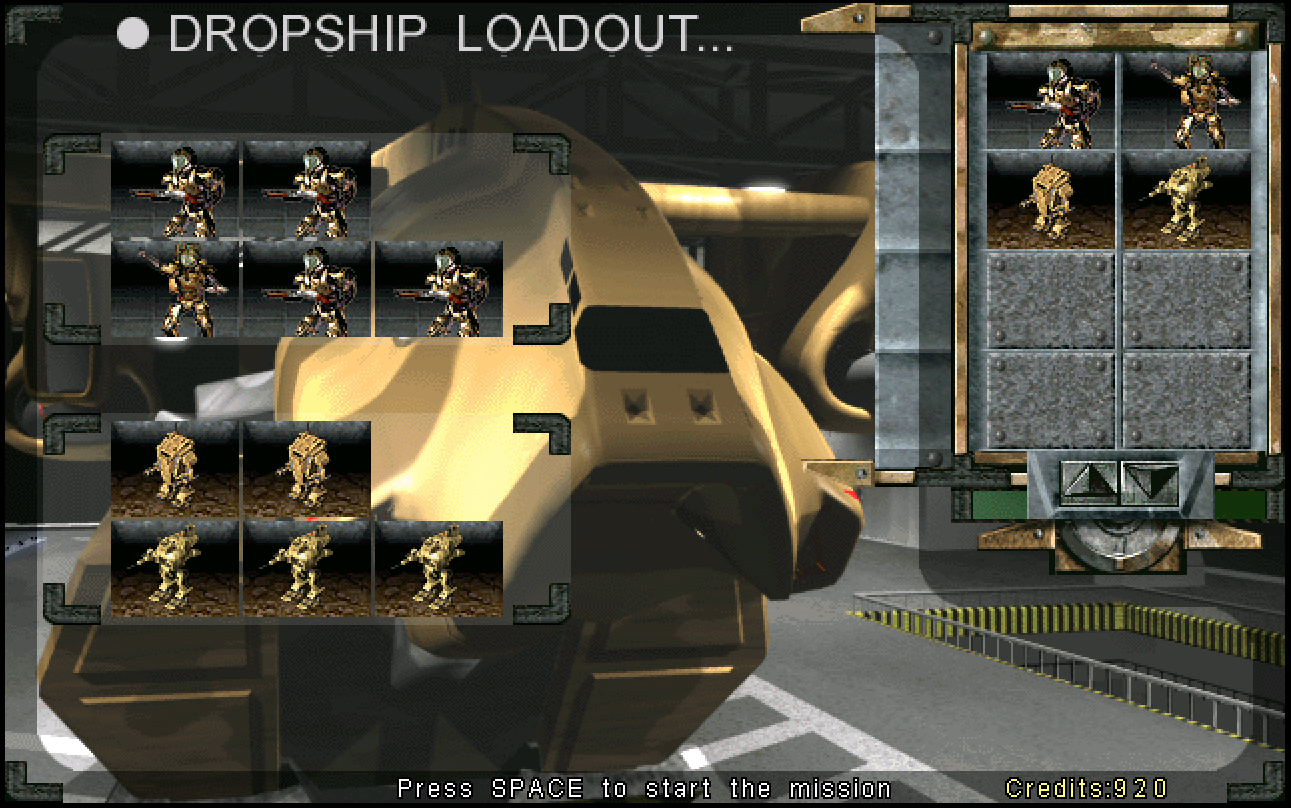
The Tiberian Sun Map theme is now played on the Dropship Loadout screen (
DSHPLOADcan be defined inTHEME.INIto customise this.)Help text is now shown on the screen to aid the user.
Loading screen
PNG images can be used as an alternative to PCX images. This new system scans for the requested filename with the .PNG extension and use that if found, otherwise it will fall back to scanning and load the .PCX file.
Note
This system only supports 8-bit PNG. All other formats such as Greyscale, Paletted, Alpha and 16-bit are not supported.
Attached is a set of the original loading screens with a minor edit and saved as PNG for testing; PNG_Loading_Screens.zip
Tactical UI
Super Weapon Timers
Super Weapon timers, similar to those found in Red Alert 2, can now be displayed on the tactical view. This is disabled by default and each relevant SuperWeaponType must have it enabled. Superweapons that are offline due to low power or are disabled via other purposes will not show.
In RULES.INI:
[SOMESUPERWEAPON]  ; SuperWeaponType
ShowTimer=no       ; boolean, when this superweapon is active, does its recharge timer display on the tactical view?
Chat Improvements
Vinifera adds a background behind the user typed messages that appear in-game to provide better readability.
Additionally, Vinifera implements the system to echo the user’s sent messages back to them in-game as a confirmation they were sent. This is an enhancement from Red Alert 2.

In UI.INI:
[Ingame]
TextLabelOutline=yes                ; boolean, should the text be drawn with a black outline?
TextLabelBackgroundTransparency=50  ; unsigned integer, the transparency of the text background fill. Ranged between 0 and 100.
Unit Health Bar
Vinifera allows customizing the position of the heath bar.
In UI.INI:
[Ingame]
UnitHealthBarPos=-25,-16     ; Point2D, the draw position of the unit health bar.
InfantryHealthBarPos=-24,-5  ; Point2D, the draw position of the infantry health bar.
Unit Pips
The location of the control group number and veterancy pips can now be customized.
In UI.INI:
[Ingame]
UnitGroupNumberOffset=-4,-4            ; Point2D, the group number offset for units.
InfantryGroupNumberOffset=-4,-4        ; Point2D, the group number offset for infantry.
BuildingGroupNumberOffset=-4,-4        ; Point2D, the group number offset for buildings.
AircraftGroupNumberOffset=-4,-4        ; Point2D, the group number offset for aircraft.

UnitWithPipGroupNumberOffset=-4,-8     ; Point2D, the group number offset for units with pips.
InfantryWithPipGroupNumberOffset=-4,-8 ; Point2D, the group number offset for infantry with pips.
BuildingWithPipGroupNumberOffset=-4,-8 ; Point2D, the group number offset for buildings with pips.
AircraftWithPipGroupNumberOffset=-4,-8 ; Point2D, the group number offset for aircraft with pips.

UnitVeterancyPipOffset=10,6            ; Point2D, the veterancy pip offset for units.
InfantryVeterancyPipOffset=5,4         ; Point2D, the veterancy pip offset for infantry.
BuildingVeterancyPipOffset=10,6        ; Point2D, the veterancy pip offset for buildings.
AircraftVeterancyPipOffset=10,6        ; Point2D, the veterancy pip offset for aircraft.

UnitSpecialPipOffset=0,-8              ; Point2D, the special pip offset for units.
InfantrySpecialPipOffset=0,-8          ; Point2D, the special pip offset for infantry.
BuildingSpecialPipOffset=0,-8          ; Point2D, the special pip offset for buildings.
AircraftSpecialPipOffset=0,-8          ; Point2D, the special pip offset for aircraft.
TS Patches changes some of the default values. Below are the values that match them:
In UI.INI:
[Ingame]
UnitGroupNumberOffset=-8,-33
InfantryGroupNumberOffset=-8,-33
BuildingGroupNumberOffset=-8,-33
AircraftGroupNumberOffset=-8,-33
UnitWithPipGroupNumberOffset=-8,-33
InfantryWithPipGroupNumberOffset=-8,-33
BuildingWithPipGroupNumberOffset=-8,-33
AircraftWithPipGroupNumberOffset=-8,-33
You can also customize how many pips can be drawn per PipScale.
In RULES.INI:
[AudioVisual]
MaxPips=5,5,5,10,8  ; list of integers - Ammo, Tiberium, Passengers, Power, Charge.
Selection Band Box
Vinifera allows customizing some properties of the band box used for unit drag-selection.
In UI.INI:
[Ingame]
BandBoxDropShadow=no                     ; boolean, should the tactical rubber band box be drawn with a drop shadow?
BandBoxThick=no                          ; boolean, should the tactical rubber band box be drawn with a thick border?
BandBoxColor=255,255,255                 ; RGB color, color draw the tactical rubber band box with.
BandBoxDropShadowColor=0,0,0             ; RGB color, color to draw the tactical rubber band box's shadow with.
BandBoxTintTransparency=0                ; integer, transparency of the tactical rubber band.
BandBoxTintColors=(0,0,0),(255,255,255)  ; two RGB colors, "dark" and "light" tint colors, interpolated based on the map's ambient light level.
Vinifera allows customizing some properties of the movement, target and target laser lines.
In UI.INI:
[Ingame]
AlwaysShowActionLines=no           ; boolean, should action lines remain visible continuously, instead of disappearing after some time?

MovementLineDashed=no              ; boolean, should movement lines be drawn with dashes?
MovementLineDropShadow=no          ; boolean, should movement lines be drawn with a drop shadow?
MovementLineThick=no               ; boolean, should movement lines be drawn with a thick line?
MovementLineColor=0,170,0          ; RGB color, color to draw movement lines with.
MovementLineDropShadowColor=0,0,0  ; RGB color, color to draw movement lines' drop shadow with.

TargetLineDashed=no                ; boolean, should target lines be drawn with dashes?
TargetLineDropShadow=no            ; boolean, should target lines be drawn with a drop shadow?
TargetLineThick=no                 ; boolean, should target lines be drawn with a thick line?
TargetLineColor=173,0,0            ; RGB color, color to draw movement lines with.
TargetLineDropShadowColor=0,0,0    ; RGB color, color to draw target lines' drop shadow with.

TargetLaserDashed=no               ; boolean, should target lasers be drawn with dashes?
TargetLaserDropShadow=no           ; boolean, should target lasers be drawn with a drop shadow?
TargetLaserThick=no                ; boolean, should target lasers be drawn with a thick line?
TargetLaserColor=173,0,0           ; RGB color, color to draw the target lasers with.
TargetLaserDropShadowColor=0,0,0   ; RGB color, color to draw target lasers' drop shadow with.
TargetLaserTime=15                 ; integer, time in frames the target laser should be drawn for when the unit fires.
Additionally, you can also enable lines to be drawn indicating the unit’s current navigation queue.
In UI.INI:
[Ingame]
ShowNavComQueueLines=yes              ; boolean, should NavCom queue lines be displayed?
NavComQueueLineDashed=no              ; boolean, should NavCom queue lines be drawn with dashes?
NavComQueueLineDropShadow=no          ; boolean, should NavCom queue lines be drawn with a drop shadow?
NavComQueueLineThick=no               ; boolean, should NavCom queue lines be drawn with a thick line?
NavComQueueLineColor=74,77,255        ; RGB color, color to draw the NavCom queue lines with.
NavComQueueLineDropShadowColor=0,0,0  ; RGB color, color to draw the NavCom queue lines' drop shadow with.
Miscellaneous
Vinifera adds support for 8-bit (paletted and non-paletted) PCX and 8-bit PNG cameos. This system auto-detects and prioritises the PNG or PCX file if found, no additional settings are required.
Vinifera thickens the waypoint and rally point lines and adds stroke/outline to the waypoint number.
Vinifera adds a “Load Game” button to the retry dialog shown after a failed mission.
Vinifera changes the game to save screenshots as a PNG file instead of PCX file. In addition to this, it also changes the filename format to be unique. Instead of writing
SCRN[0000-9999].PNG, the game now writesSCRN_[date-time].PNG(example,SCRN_02-06-2021_12-51-40.PNG).